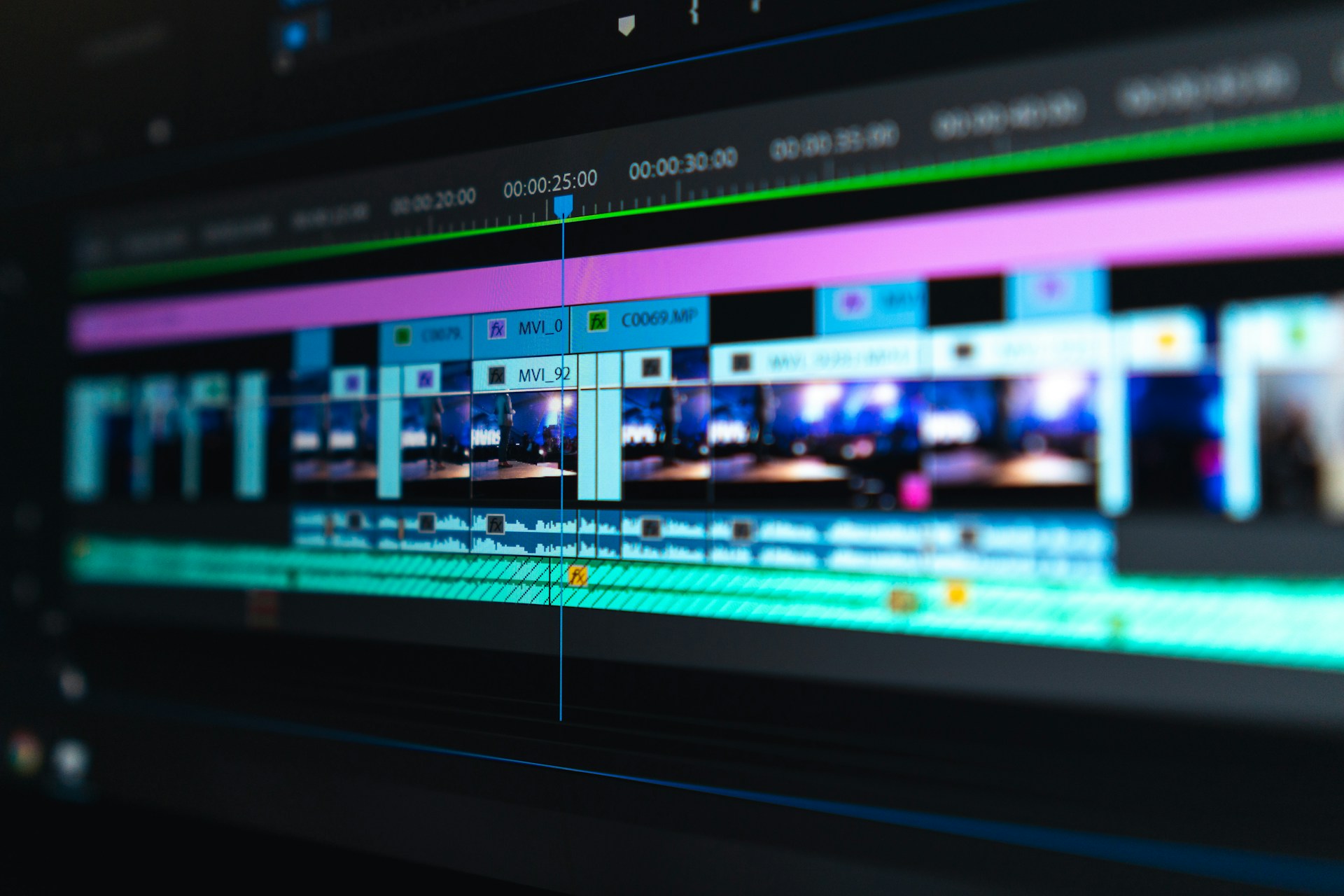
If you want to turn a video directly into anime (without first extracting frames into images), there are several free options. Most AI tools still process videos frame by frame internally, but you only upload the video—not individual images.
1. CapCut AI Video Style (Free)
- Upload your video.
- Choose an Anime or Cartoon style.
- Export the result.
- Free version adds a watermark and may limit quality.
Pros:
- Easy to use
- No frame extraction needed
2. Vidnoz AI (Free Tier)
- Upload your video.
- Select an anime style.
- Generate and download.
Pros:
- Browser-based
- No installation
3. ComfyUI + WanVideo / AnimateDiff (Free, Local)
If you have a reasonably powerful GPU:
- Install ComfyUI.
- Use a video-to-video workflow with Anime models.
- Feed your video directly.
- It processes the video and preserves motion.
Pros:
- No watermark
- High quality
- Fully free
Cons:
- Requires setup and a decent GPU.
4. Stable Diffusion Video Workflows (Free)
Tools like:
- ComfyUI
- InvokeAI
- Automatic1111 (with video extensions)
can transform videos into anime using models such as:
- Anything V5
- Counterfeit
- MeinaMix
Again, you upload the video directly.
5. FFmpeg + AnimeGAN (Advanced, Free)
This is completely free:
- Split video into frames automatically.
- Apply AnimeGAN to every frame.
- Reassemble into a video.
You never manually handle images—the process is automated.
If you don’t have a GPU
Use free online services:
- CapCut
- Vidnoz AI
- PixVerse (limited free credits)
- Hailuo AI (limited free credits)
Best free quality
- Easy: CapCut
- Highest quality (PC): ComfyUI + AnimateDiff + Anime model
- Completely free and offline: AnimeGAN + FFmpeg
If your goal is making your video look like Studio Ghibli, Naruto, Demon Slayer, or Makoto Shinkai-style anime, I can also recommend the best free models and settings for each style.